
How to Share Recorded Meetings
How To Share Recorded Meetings
Section titled “How To Share Recorded Meetings”As a distributed remote team committed to transparency, we heavily leverage video for meeting recordings, walk-throughs, feature documentation, and for this we use Bluedot. Bluedot creates AI-generated meeting summaries, and can post videos automatically in chat channels.
⚠️ Important: The summaries can be long and flood chat. The settings below will help you strike a balance between transparency and verbosity.
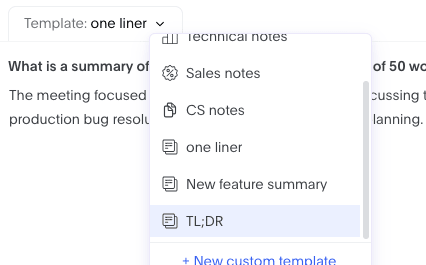
- In your Bluedot settings, select “one liner” as your default template.
Workflow
Section titled “Workflow”-
Record your meeting and wait for Bluedot to process it. It will send you an email and chat notification when it’s ready.
-
Choose the right template for chat posting: When you move the video (in the next step), Bluedot may automatically post your video to chat, depending on what collection you move it to.
For videos that will be automatically posted to chat, choose the “one liner” - the shortest template - to avoid flooding the channel.
-
Move the meeting (Move button, upper right) to the appropriate “shared collection”
-
Share manually if needed: If it’s not auto-posted to chat, or if you want to be sure people see it, copy the link and share it in the appropriate chat channel.
-
Add detailed summary for records: After your video is shared, you can go back to the video and replace the template to “TL;DR”, so that we have a more informative summary in Bluedot for our records.
Feedback on Meeting
Section titled “Feedback on Meeting”Section placeholder for future feedback guidelines