
Sentry Alarm Triage
This document defines how the team triages Sentry alarms across all environments. It sits upstream of the Incident Response Plan — it covers the triage step that determines whether a response is needed and at what urgency, before a formal incident is declared.
Quick assessment
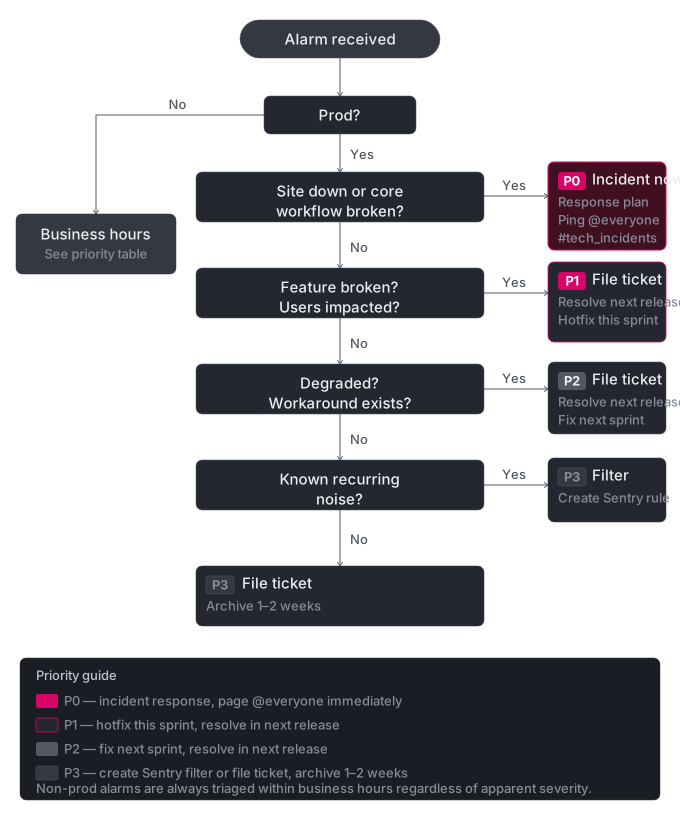
Section titled “Quick assessment”Alarm just fired? What priority is this? Follow the arrows — full detail in the sections below.
Environments and channels
Section titled “Environments and channels”| Environment | Discord channel | Coverage | Primary watcher |
|---|---|---|---|
| prod | #alarms_production |
24/7 | First Responder (PagerDuty) |
| demo | #alarms_demo |
Business hours + scheduled meetings | Tech Lead (current sprint) and QA |
| staging | #alarms_staging |
Business hours | Tech Lead (current sprint) and QA |
| main | #alarms_main |
Business hours | Tech Lead (current sprint) |
Business hours = NY business hours (9am–6pm ET). All response expectations are relative to this window unless otherwise noted.
Non-production channels have no 24/7 coverage requirement. Alarms are expected to be picked up and triaged within the working day they appear — each person monitors during their own working hours
PagerDuty
Section titled “PagerDuty”PagerDuty is active for production only, paging the on-call First Responder during their defined on-call hours, then escalates to secondary and beyond outside those hours. See On-Call Rotation for rotation schedule, coverage assignments, and setup requirements.
The rotation should cycle across all team members. Because our users are in NY, those working hours see the highest activity — the rotation schedule should distribute those shifts deliberately rather than letting them consistently fall on the same person. (Action item: ensure all team members have active PagerDuty accounts in the rotation.)
Main environment
Section titled “Main environment”Main has no dedicated watcher. The Tech Lead for the current sprint is accountable for ensuring alarms don’t go stale, but triage is a collective responsibility. Anyone who sees something in #alarms_main and has capacity should claim it.
Alarm classification
Section titled “Alarm classification”Use the Bug Priority definitions when triaging. In the context of Sentry alarms:
| Priority | What it means | Response |
|---|---|---|
| P0 | Critical path down — login, core workflow, site unreachable | Follow Incident Response Plan immediately |
| P1 | A feature is broken, users impacted | Ticket + hotfix this sprint; blocks release on staging |
| P2 | Degraded but workaround exists; minor or cosmetic | Ticket for next sprint; resolve in next release |
| P3 | Known noise — N+1 queries, recurring non-critical errors | Filter in Sentry or archive |
Triage workflow
Section titled “Triage workflow”When an alarm appears in any #alarms_[env] channel:
- React 👀 to claim it. This signals to the team that someone is on it.
- Investigate — check the alarm details in Sentry. Understand the issue before acting; use AI tools or ask for help if needed.
- Classify using P0–P3 above.
- Create a ticket & assign if the issue needs a fix. Use the
/file-bugClaude skill when available — it handles formatting, linking, and duplicate checking. - Take action in Sentry — resolve (immediately or in next release) or archive (time-bound, snooze, or permanent) based on what the issue warrants. See P0–P3 below for specifics.
- Communicate — update the Discord thread with the outcome: ticket link, PR link, or reason for archiving. React ✅ when resolved or handed off.
- Follow up — after a fix ships, return to Sentry to resolve or unarchive the issue so it can re-alert if it recurs.
P0 — Immediate
Section titled “P0 — Immediate”Go to the Incident Response Plan now. Do not wait.
For prod, PagerDuty will have already paged the First Responder. If you see a P0 in Discord and no one has responded, escalate directly — create a new thread and ping @everyone in #tech_incidents.
P1 — This sprint
Section titled “P1 — This sprint”- Create a
Production bugticket. - Resolve the issue in Sentry — select Resolve in next release so it re-opens automatically if it recurs after the release.
- Build and test the fix on staging.
- Release as a hotfix.
- Update the Discord thread with the ticket link and resolution.
On staging, P1 bugs block the next release.
P2 — Next release
Section titled “P2 — Next release”- Create a ticket.
- Resolve the issue in Sentry — select Resolve in next release.
- Update the Discord thread with the ticket link.
On staging, P2 bugs also block the next release.
P3 — Filter or archive
Section titled “P3 — Filter or archive”Use the right tool depending on whether the issue is permanent noise or something that should eventually be fixed:
Confirmed permanent noise (e.g. known N+1 patterns, rage clicks) → create a Sentry filter rule under Issues → Alerts. A filter rule keeps the issue visible in Sentry for tracking but suppresses alerts permanently — it will not post to the alarm channel or page on-call. Do not achieve this via archiving. (This is also distinct from PHP-level suppression, which prevents the error from reaching Sentry at all.)
Needs a fix but not urgent (ticket exists or will be created) → archive with a time bound of a few weeks. Do not use count-based archiving (e.g. “until 1,000 events”) when a fix is planned — once archived for a large count, there is no feedback if the fix ships but doesn’t actually resolve the issue. Time-bound archiving forces a re-check and keeps the feedback loop intact.
Noise management
Section titled “Noise management”N+1 query filtering
Section titled “N+1 query filtering”N+1 queries are filtered in prod only. They remain active in main and staging — these are the environments where we should be catching and fixing them before they reach prod. Treat N+1s on main and staging as P3: ticket and archive.
Threshold-based alerting
Section titled “Threshold-based alerting”For known noisy error types, Sentry’s “ignore until X occurrences” feature can reduce channel noise. This applies only to P2/P3 errors. P0 and P1 always fire immediately regardless of count. A ticket must exist for the underlying issue before adding a threshold rule.
Prefer this approach only when a filter rule is too broad — for example, to let a known noisy error surface again if it suddenly spikes. Do not use count-based thresholds as a substitute for a time-bound archive when a fix is actively planned.
Demo environment
Section titled “Demo environment”Demo is prod-like and used for live client presentations. During business hours, Tech Lead and QA monitor #alarms_demo and escalate to on-call or a senior Coder if something is down. Outside business hours there is no active monitoring unless a client meeting is scheduled — in that case, the meeting organizer is responsible for confirming demo is healthy beforehand.
Internal & Confidential: This page is only available in the internal handbook and contains confidential information.